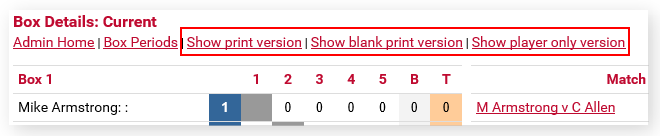
All printing is done from the Adding Results page:
| Printing Leagues |
|
|
Show print version
This is a copy of the players, boxes and points exactly as it appears on the Adding Results page. This might be used to display the last period results if required.
Show blank print version
This is similar to the above, in that it is a copy of the players and the boxes, but it does not show any points. Historically, printouts such as this have commonly provided a sheet for players to add their own results, which would then be processed manually for the next period.
However, this is just perpetuating the need for manual entering of results by an administrator.
League Master provides a Player Registration process, which gives each player their own login to both manage their profile and also to enter their own results, so there is no reason why this printout should be needed.
Show player only version
Even if told otherwise, a list of players with a box beside them might encourage players to write their scores on it. However, you may want to display a list of players with their contact details.
How to Control Printing
One of the key points to remember is that a web page has almost no concept of a 'page'. Just try resizing your browser on any web site and the text and images resize or realign themselves to suit the size of the browser, not any underlying page size.
The problem this leads to is that there is almost no way to be certain of how a web page will print out until you try it.
If your page contains just text, then this isn't too much of a problem but if it contains data in tables, such as leagues boxes for instance that you want to print out accurately, then there are a number of things you need to consider but they are all dependent upon your choice of browser.
However, our recommendation is that you use Internet Explorer.
Internet Explorer 11
Bring up the Print Preview window. This can be done in two ways:
1) Right-click on the tab bar and make sure that Menu bar is ticked:
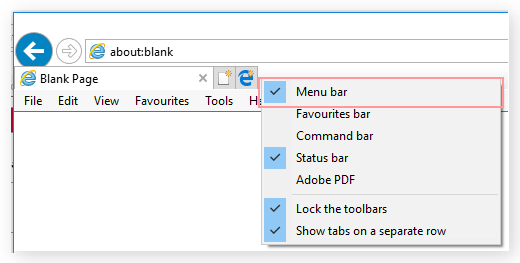
2) Press the Alt key on the keyboard and this will temporarily bring up the Menu bar.
From the Menu bar, click on File and then Print Preview:
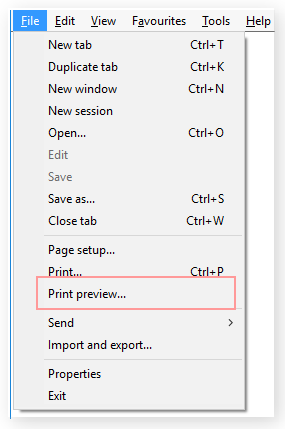
At the top will be several options:

Exactly how the page looks in the preview will vary from setup to setup, but the aim is to get an exact number of boxes displayed, without part of a box overlapping onto the next page. In addition, the background colours may not be shown, so will need to enable this in your browser. There are three basic things to look at:
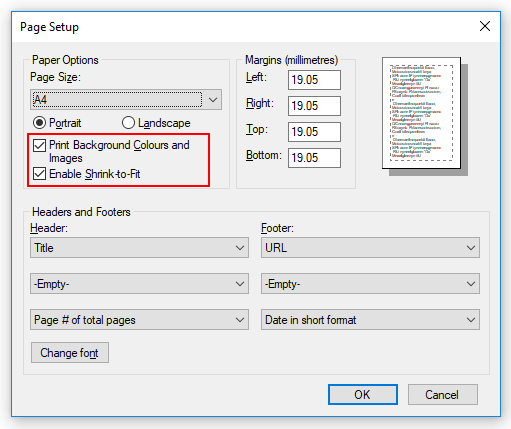
Enabling background colours
On the Tool bar click on the Page Setup icon:

On the Page Setup, ensure that Print Background Colours and Images is ticked, and also Enable Shrink-to-Fit is ticked:
Basic page layout
On the Tool bar there are three options for the basic layout:
Pick the one that seems to work best for you, but usually it is Only the selected frame.
Size
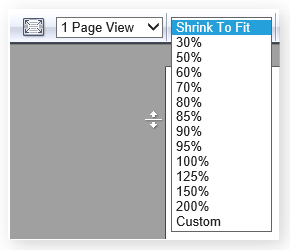
This is difficult to comment on but start at 100% and then try other size options until you find the one that works best.