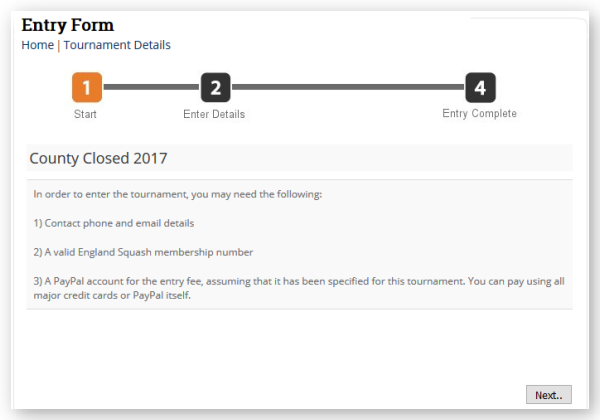
League Master provides an online entry system for all tournaments, that optionally can include Online Payment.
The entry process takes the form of a series of pages, all customisable, which takes
the entrant through the input of necessary details, selection of events, and then payment if
required.
In order to use online entry, there are a number of initial stages:
Tournament Setup
First create your tournament by selecting Tournaments & Events > Add and Edit Tournaments > Add Tournament. If you are not using online entry, then you may only need to add information in the General section, but even if using online entry, a good idea is to fill in the General section and then Save the tournament before moving to the other settings.
Now, having created your tournament, return to the Tournament Setup page and set the following options:
 |
Details Page: Use Details Page |
The Details page is a landing page for the tournament that allows you to add a range of information, including links to the online entry pages.
 |
Online Entry: Use Entry Form |
This will enable the Entry Form link on the details page, which entrants will use:

 |
Online Entry: Entry Link Active |
Having ticked Use Entry Form, and ticked Entry Link Active, an entrant can then enter the tournament. (If you untick Entry Link Active, then the link changes to the words "The entry for this tournament is now closed" so ensure this is ticked for now).
At this point, Save the tournament.
 |
Online Entry: Categories |
Click on the Edit button to bring up the categories page:
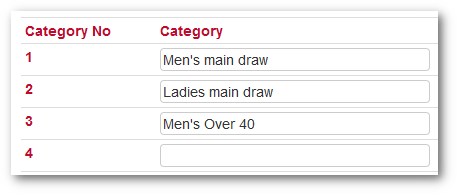
Enter the event categories for your tournament, as entrants will see them in the online entry process.
 |
Note: Once the tournament entry is
made live, and a player enters the first category "Men's main
draw", to use the above screenshot as an example, then the
system will record it as category ID 1. This means that you can
initially move categories into whatever order you like, but once
the online entry is live, DO NOT change the categories or move
them into a different order. It will result in players being
entered into the wrong category. However, if you need to add a new category, you can add it at the bottom of the list without any problem. |
 |
Online Entry: Category Selection Type |
You can either allow an entrant to select just one event category from
your list, or allow them to select more than one. Set the Selection Type
to Only one can be selected or Multiple Categories can be selected as
required.
At this point, Save the tournament again and return to the
Tournament Home page.
Now that the online entry is visible and enabled, you will see the Online Entry link:

Click Online Entry to proceed to the
Main Online Entry Page.